Holoscan Sensor Bridge
Up to eight IMX678 cameras stream MIPI CSI-2 video into the Agilex 5 FPGA on the MitySOM-A5E. The FPGA packetizes the raw sensor data itself and sends every stream over a single Ethernet link to an NVIDIA Jetson AGX Thor, which converts, debayers and displays them live, with optional YOLO11 body pose on every camera, with no frame grabber or capture card.
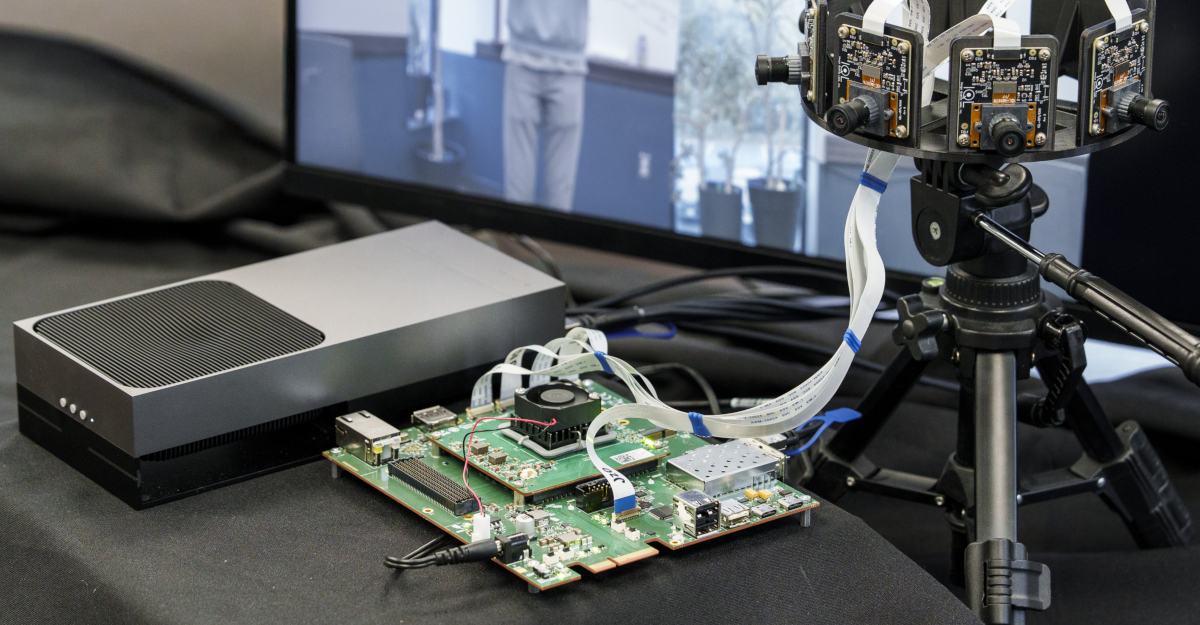
The source, the FPGA designs and the setup instructions for the Jetson are on GitHub: criticallink/holoscan-sensor-bridge. Prebuilt FPGA images and SD card images are in the GitHub releases.
Visit the Holoscan Sensor Bridge with MitySOM-A5E product page for additional product information and links to purchase.
What you need
| Item | Notes | Included in the MitySOM-A5E Development Kit |
|---|---|---|
| MitySOM-A5E SOM | Group A (A5ED-A63-144-SRC) for 25GbE, or Group B (A5ED-B64-144-SRI) for 10GbE | Yes |
| MitySOM-A5E STD development board | 80-001828RI-7, the 8-camera baseboard | Yes |
| IMX678 camera modules | Up to eight, with 24 MHz INCK, each with its MIPI ribbon | No |
| NVIDIA Jetson AGX Thor developer kit | JetPack 7.2 | No |
| Breakout cable | Passive QSFP28 (100G) to 4x SFP28 for Group A, or QSFP+ to 4x SFP+ for Group B. The Jetson's QSFP port must be set to the same rate (see below). | No |
| 12 V supply for the board | Barrel plug | Yes |
| microSD card | For the HPS-first designs, written with the release's SD card image | Yes |
| JTAG cable and the Quartus Prime Pro 26.1 Programmer | To program the SOM once | No |
| DisplayPort monitor and cable | 1080p recommended | No |
Program the SOM
Program the SOM once, before the first setup. The HPS-first designs (mitysom_ae3v_25g_hps_8cam, mitysom_ai4s_10g_hps_8cam) are recommended: they boot Linux on the SOM from the SD card, which turns on the board fan (see Fan Enable). The FPGA-first designs cannot turn the fan on. The programming steps, including writing the SD card, are in fpga/critical_link/README.md.
Set up the Jetson (once)
Follow the README on the Jetson:
- Install JetPack 7.2 and NVIDIA's Holoscan Sensor Bridge host prerequisites.
- Set the QSFP port's rate when flashing JetPack: 10G is the default, and the Group A designs need 25G.
- Install Git LFS and clone the repository.
- Build the demo container with
sh docker/build.sh --igpufrom the repository root.
Step 1: Connect the board
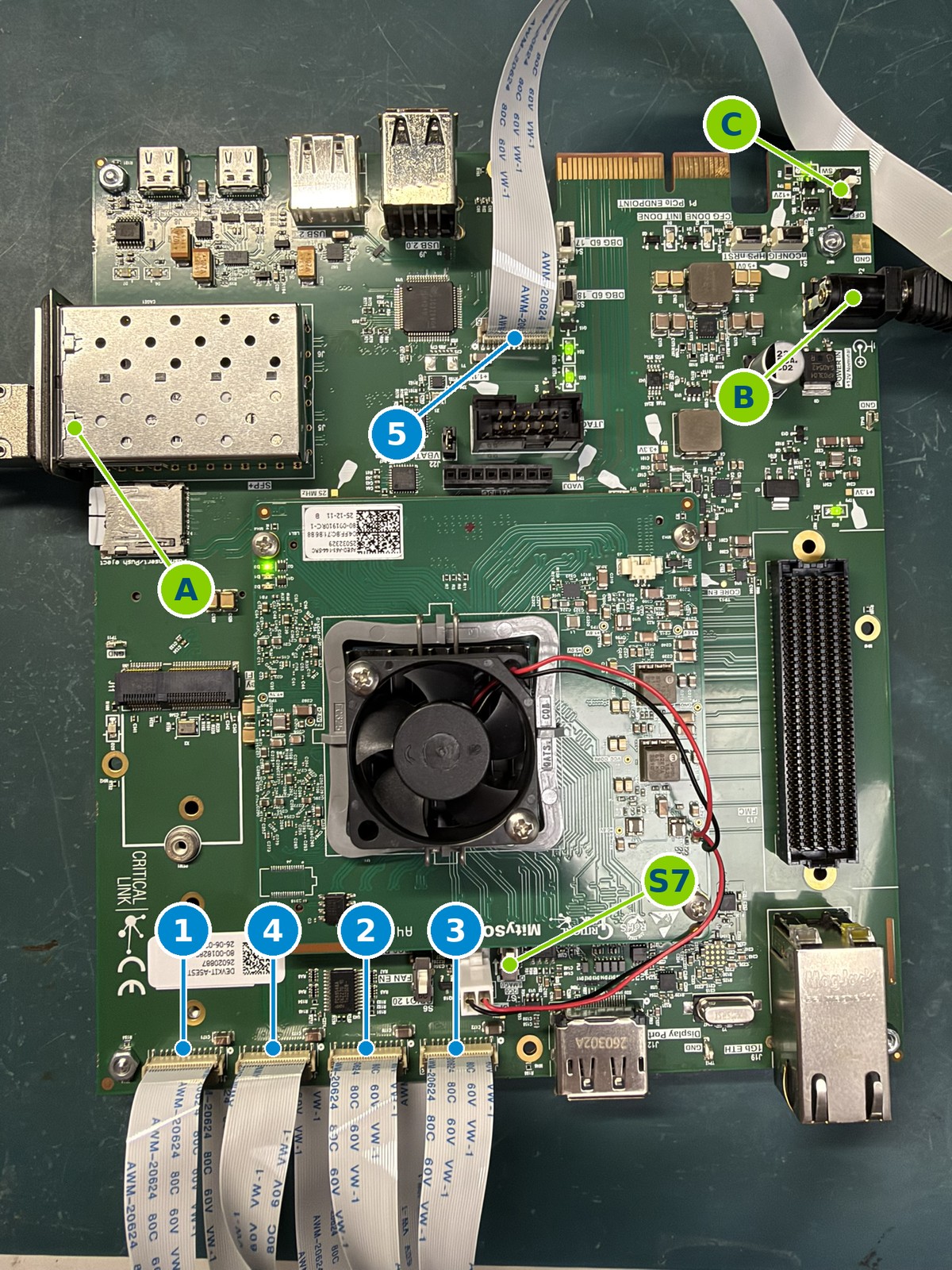
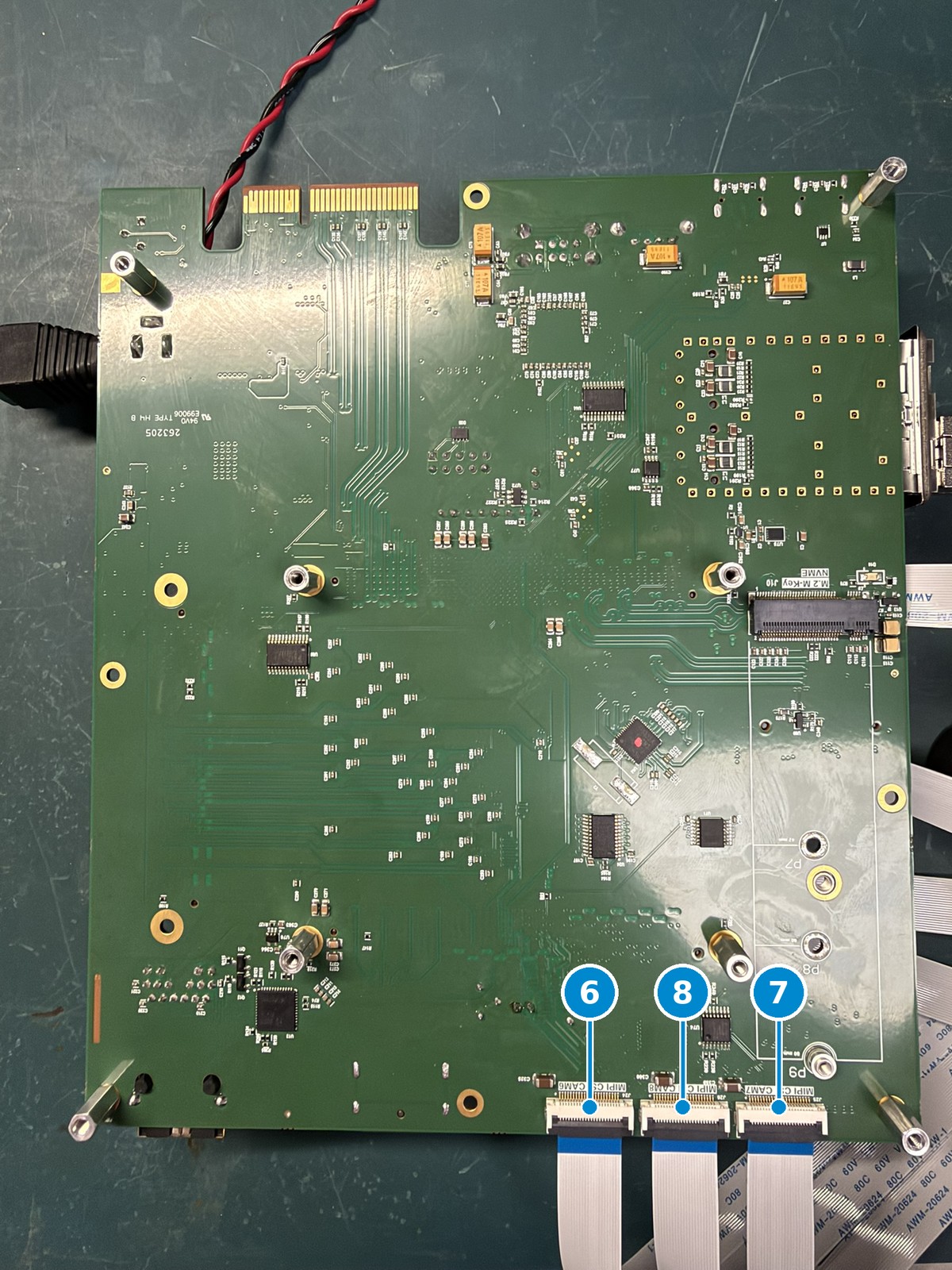
Connect the cameras first, then the network cable and power. Leave the power switch at OFF until everything else is plugged in. Cameras 1-5 and the network and power connections are on the front of the board, cameras 6-8 on the back. The PCIe edge connector is at the top in both photos.
| Front | Back |
|---|---|
 |
 |
| Camera | --cams |
Connector | Where it is on the board | Where it appears on screen |
|---|---|---|---|---|
| 1 | 0 | J16 | Front, DisplayPort edge, 1st from the left | Top row, left |
| 2 | 1 | J15 | Front, DisplayPort edge, 3rd from the left | Top row, middle |
| 3 | 2 | J17 | Front, DisplayPort edge, 4th from the left | Top row, right |
| 4 | 3 | J18 | Front, DisplayPort edge, 2nd from the left | Middle row, left |
| 5 | 4 | J20 | Front, beside the JTAG header | Middle row, right |
| 6 | 5 | J24 | Back, DisplayPort edge, left as seen from the back | Bottom row, left |
| 7 | 6 | J25 | Back, DisplayPort edge, right as seen from the back | Bottom row, middle |
| 8 | 7 | J26 | Back, DisplayPort edge, middle | Bottom row, right |
The connectors are not in camera order along the edge: go by the printed label ("MIPI CSI CAMn" beside each connector), never by position. With all eight cameras the Critical Link logo takes the centre of the screen; with fewer, the tiles fill the grid in camera order. If a view is missing, the table tells you which ribbon to check.
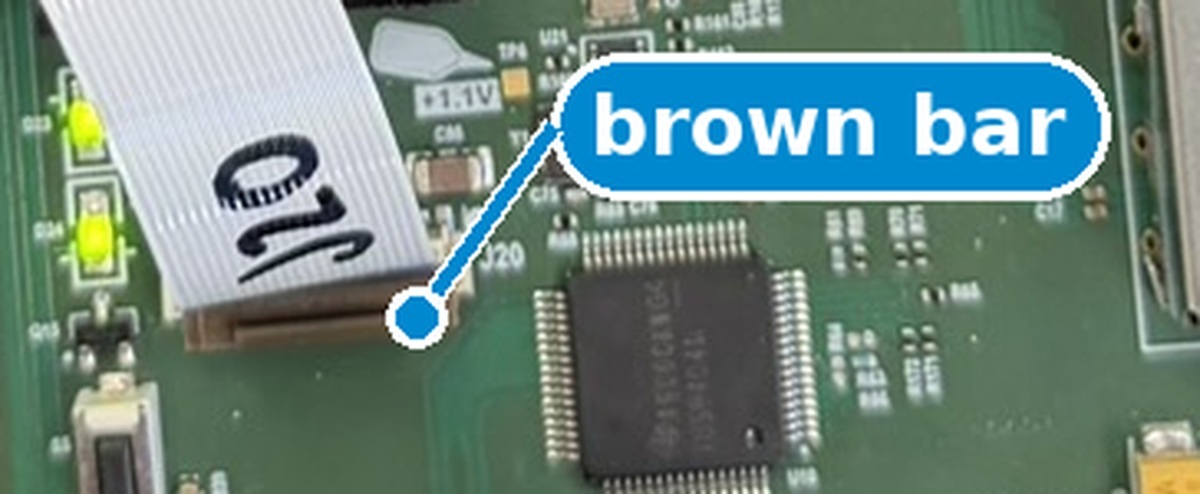
Switch the board off before connecting a ribbon. The camera ribbons are not hot-swappable. Each connector has a dark brown bar along one edge, which is the clamp. Lift it, slide the ribbon in as far as it goes with the blue end of the cable on the brown bar side, then press the bar back down. It needs no force and should close flat.
- S7, camera I2C switch: marked I2C0 EMAC0 OVRRIDE, beside the fan connector. Set it as in the photo, slid toward the SOM (its +1.8V side); in the other position the cameras do not answer.
- A, network cable, SFP end: use the leg marked 1, in J5, the SFP socket next to the microSD slot (the other socket, J6, is not used). Push it in until the latch clicks; leave the other legs loose.
- B, 12 V power: the barrel jack marked POWER IN.
- C, power switch: marked POWER SW. Plugging in the 12 V supply does not switch the board on; this switch does.
Step 2: Connect the Jetson AGX Thor
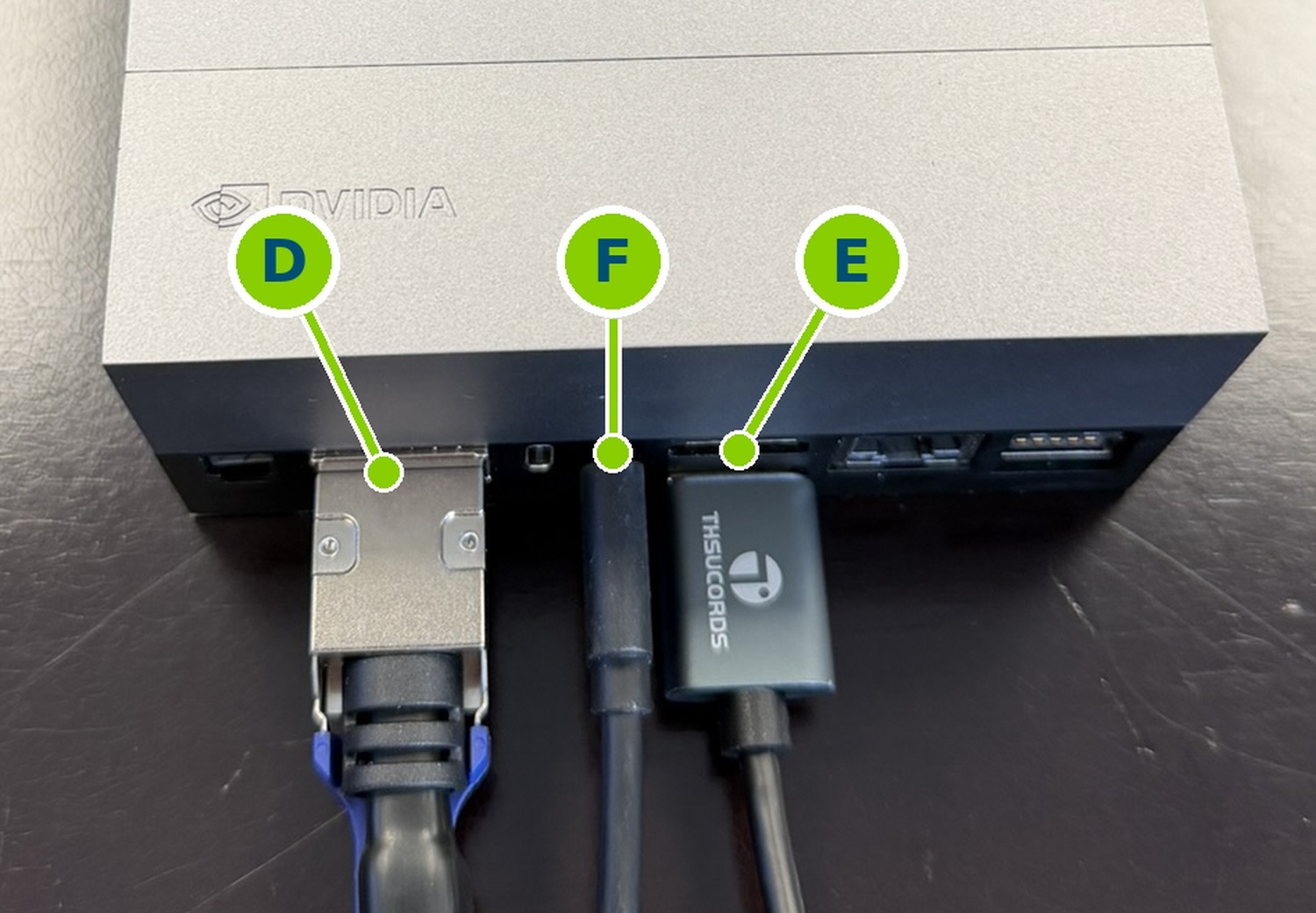
- D, network cable, QSFP end: the other end of the breakout cable. Push it in until the latch clicks; the pull-tab releases it.
- E, DisplayPort to the monitor.
- F, USB-C power: leave it unplugged until Step 3. The Jetson powers on when it is connected.
Step 3: Power up and start the demo
The board must be powered and running before the player starts, and the Jetson's network setup must run after the board is powered on.
- Switch the monitor on and select its DisplayPort input.
- Switch the board on at the power switch and wait for its LEDs. With an HPS-first design the fan also starts once the SOM has booted and loaded the FPGA; allow about 30 seconds. With an FPGA-first design the fan does not run.
- Connect the Jetson's USB-C power and log in to its desktop.
- In a terminal on the Jetson's desktop, in the cloned repository, prepare the network port with
sudo examples/critical_link/thor_network_setup.sh. Run this after every boot of the Jetson and after every power cycle of the board.
Start the demo from the same terminal. For a 1080p monitor:
xhost +local:docker
sh docker/demo.sh python3 examples/critical_link/mitysom_player.py --fullscreen --window-width 1920 --window-height 1080
With another monitor, pass its resolution in --window-width and --window-height. The camera views appear within a few seconds. The player's options, including body pose and other resolutions and frame rates, are in the README.
If something is not right
| What you see | What it means | What to do |
|---|---|---|
| Nothing on the monitor | Monitor input, or the Jetson is still booting | Check the monitor is on its DisplayPort input, and allow two minutes from power-on. |
| The player stops at start-up with an I2C error | A camera did not answer | Check that S7 is set as in Step 1. Switch the board off and reseat that camera's ribbon at both ends. To run without it, leave it out with --cams (below). |
| The player cannot find the board | The Jetson is not receiving from the board | Check the board's LEDs, both ends of the network cable, and that thor_network_setup.sh ran after the board was last powered on. |
| One tile shows NO SIGNAL, the rest are live | That camera's video stopped arriving | Restart the player. If the same camera fails again, switch the board off and reseat that ribbon. |
| No LEDs on the board (and no fan with an HPS-first design) | No power to the board | Check the 12 V jack and that the power switch is at ON. |
| Images look washed out | Very bright room | The cameras run at a fixed exposure. Move them away from direct sunlight, or lower the gain with --gain. |
Finding a camera that does not answer: start the player with one camera at a time, using the --cams value from the table in Step 1. For camera 1:
sh docker/demo.sh python3 examples/critical_link/mitysom_player.py --cams 0
Then run every camera that worked, for example all but camera 8 with --cams 0,1,2,3,4,5,6.
Shutting down
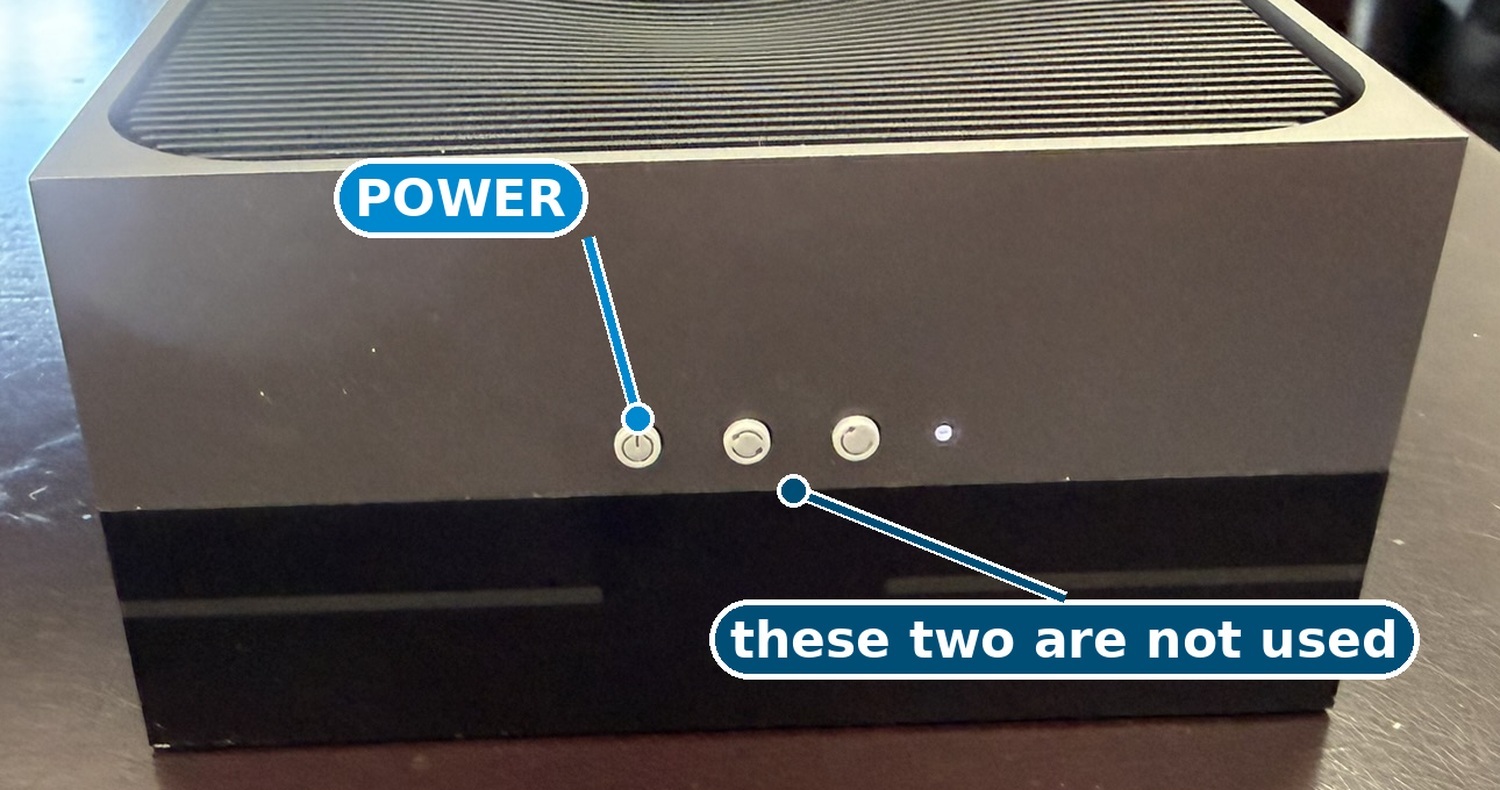
- Stop the player (Ctrl-C in its terminal) and shut the Jetson down from its desktop menu, or with
sudo poweroff. If it does not respond, press its power button, the leftmost of the three on the end opposite the cables. - Switch the board off at the power switch and wait for its LEDs to go out.
- Unplug the ribbons at the board end, leaving them on the cameras, so only the board end has to be reconnected next time.
More information
- README: the Jetson setup, the player options and body pose
- fpga/critical_link/README.md: the FPGA designs, building them and programming the SOM
- MitySOM-A5E Dev Board DataSheet [pdf]
- NVIDIA Holoscan Sensor Bridge user guide
- Fan Enable
- MitySOM-A5E Pin-Out Spreadsheet